Pick your language here | Elige tu idioma aquí | choisissez votre langue ici | Escolha seu idioma aqui
Bills Treasury App Tutorials Page
Home Page
On the home page of the app, all you have to do is to click on one of the following options:
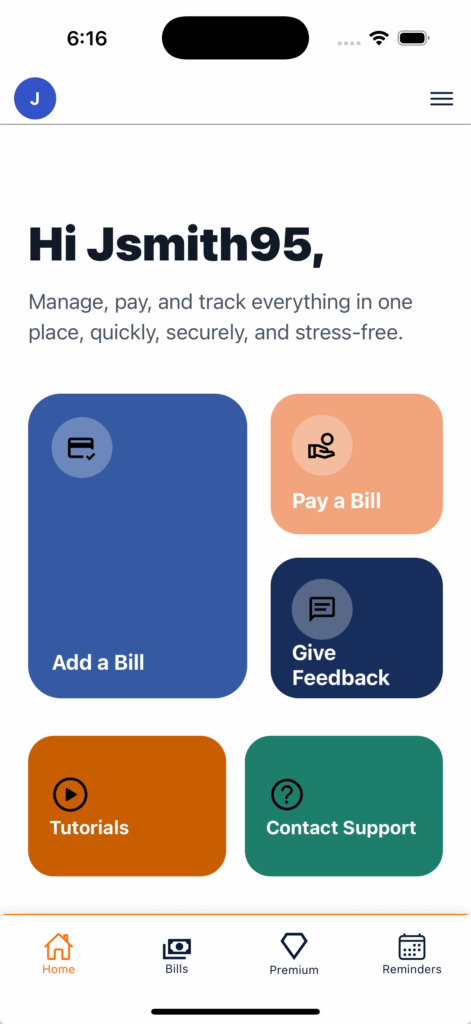
Add a bill
Pay a Bill
Give us valuable feedback
Go to the app’s tutorials page to learn how to use it.
Contact app Support
How to add a bill
To add a bill, to follow the prompts on the application:
Enter the name of the bill
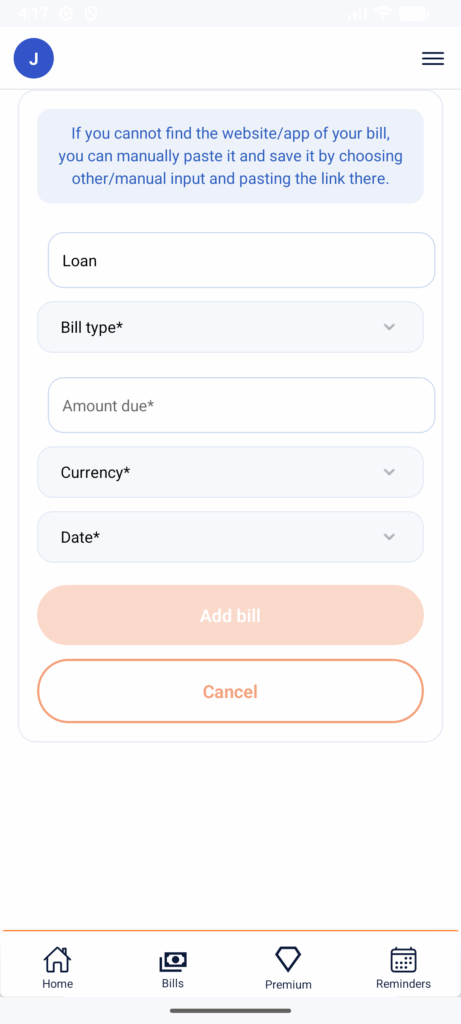
Choose the type of bill it is is
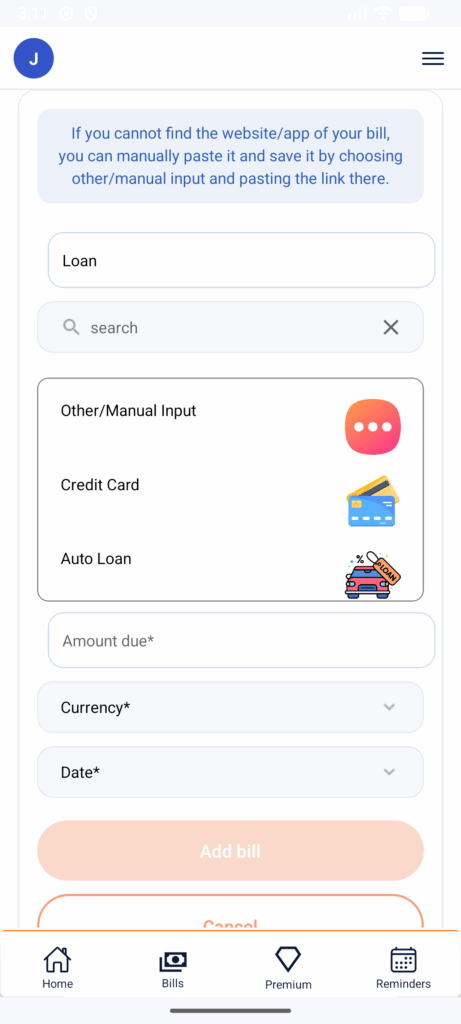
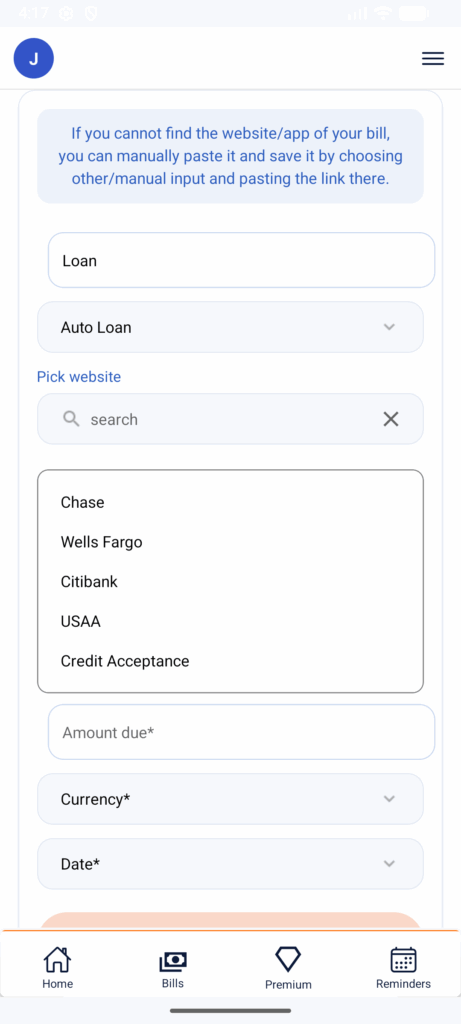
Pick the website/app. If your bill’s website is not on the app yet, you can manually past it on the app. Make sure to paste the whole link for it to work such as https://billstreasuryapp.com/ and not just the website domain name or app name. We will be adding more options as we go and will have your website/app link available soon.
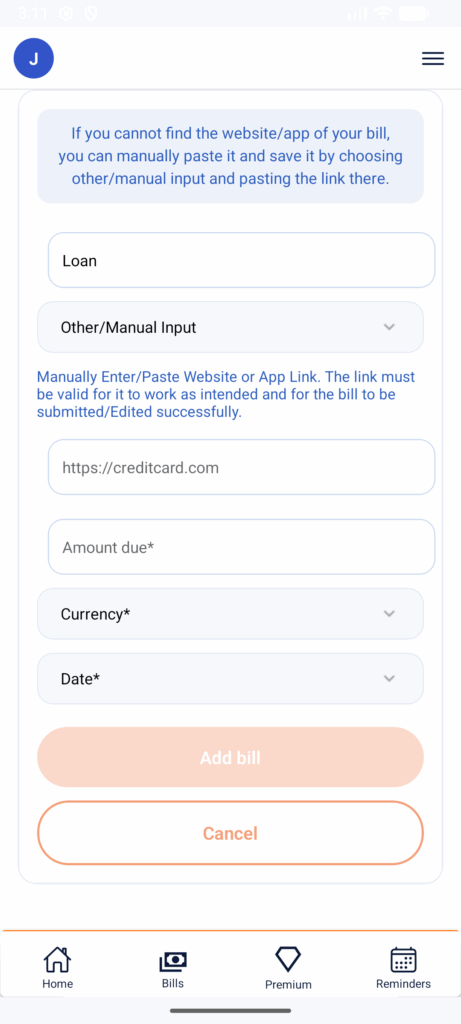
Enter the amount
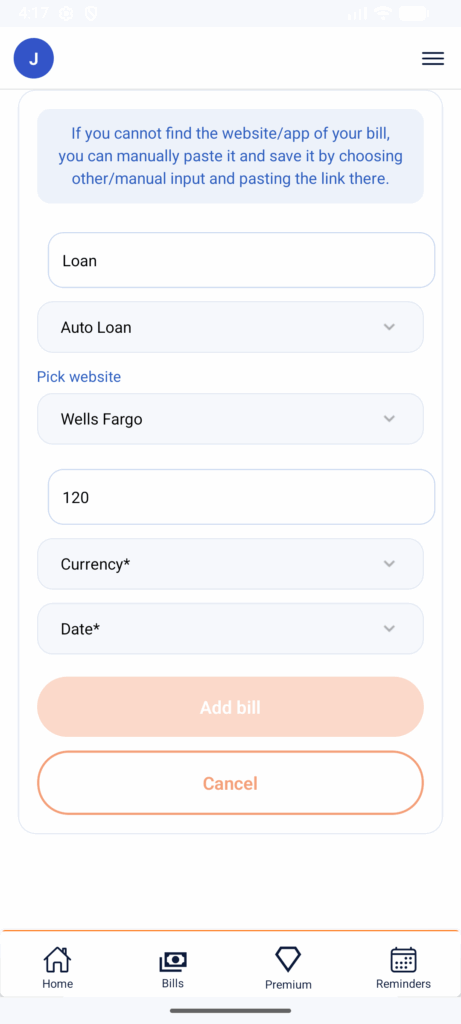
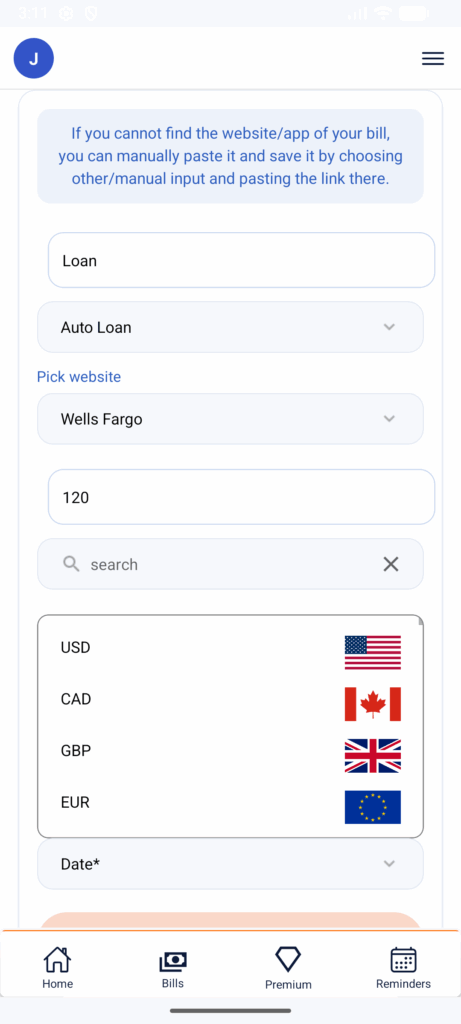
Pick the Currency you use for your bill
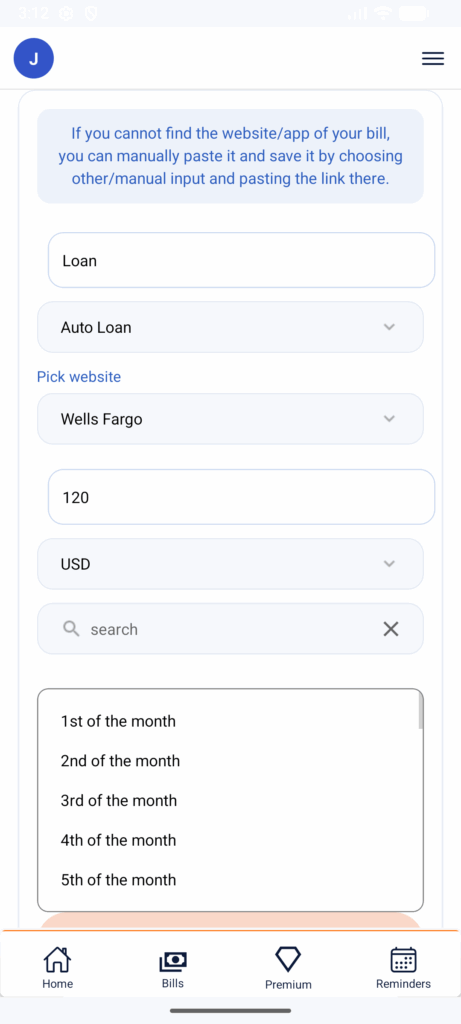
Pick the due date
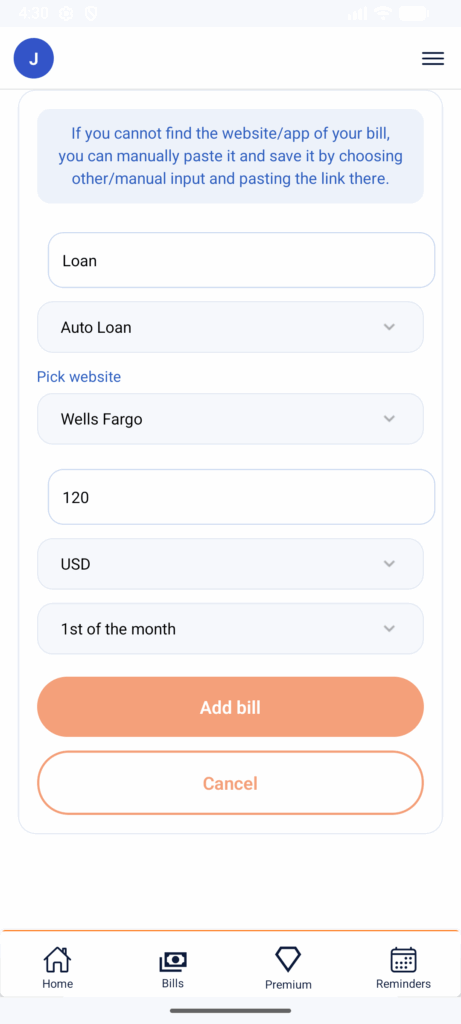
Click on Add Bill
How to view, edit, Pay or delete a bill
-View your bill (more details)
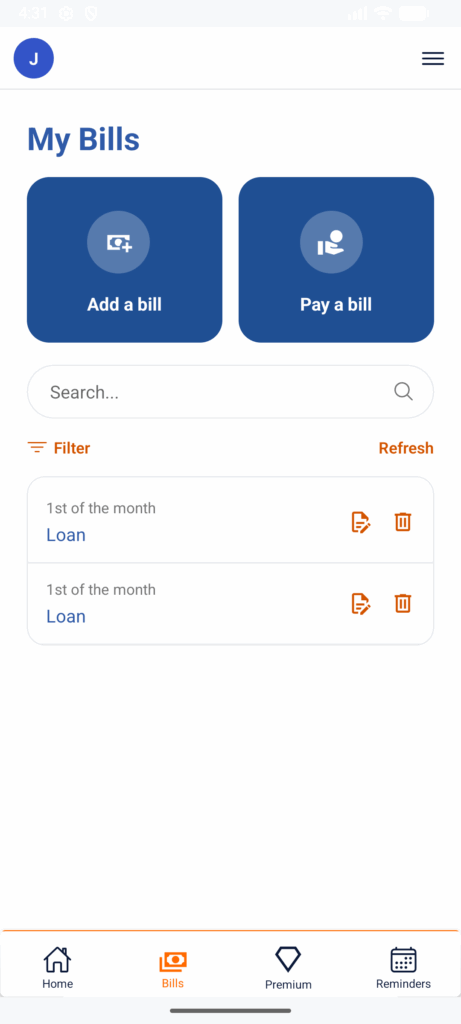
For that, simply tap the bill
-Edit your bill
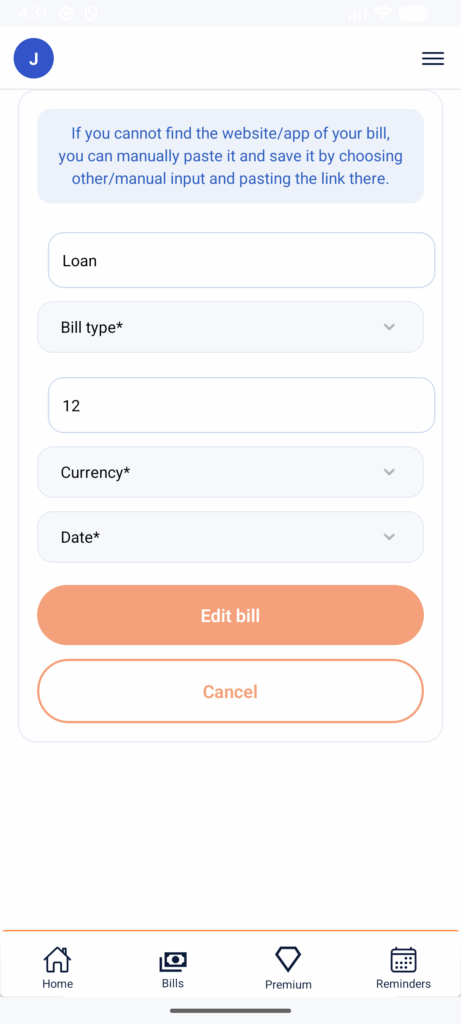
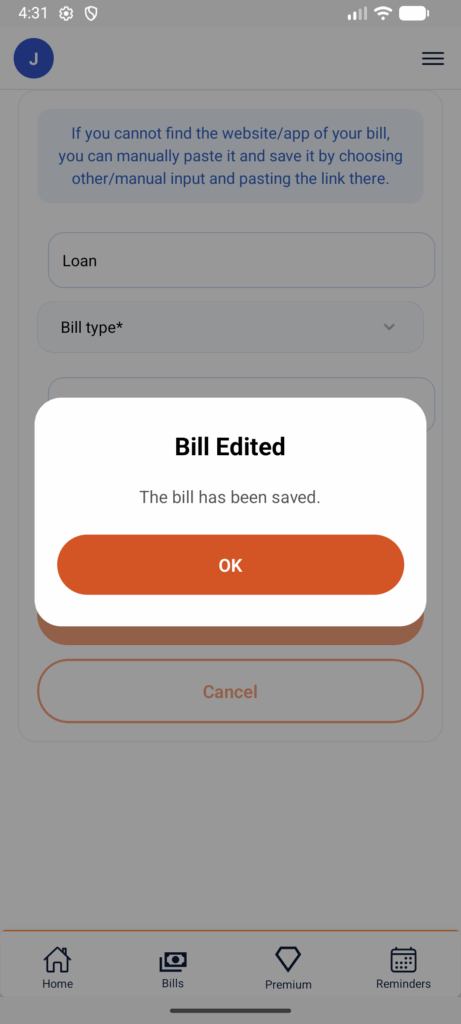
Click on the pen and paper icon to edit a bill. After making necessary changes, click on the Edit Bill to save changes.
-Delete a bill
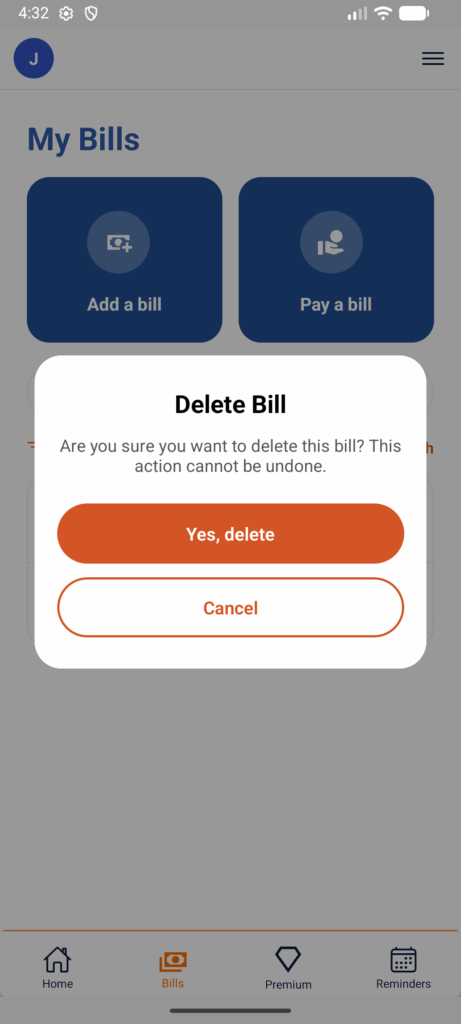
To delete a bill, click on the trash to delete it. Click on ‘Yes, delete’ to confirm deletion.
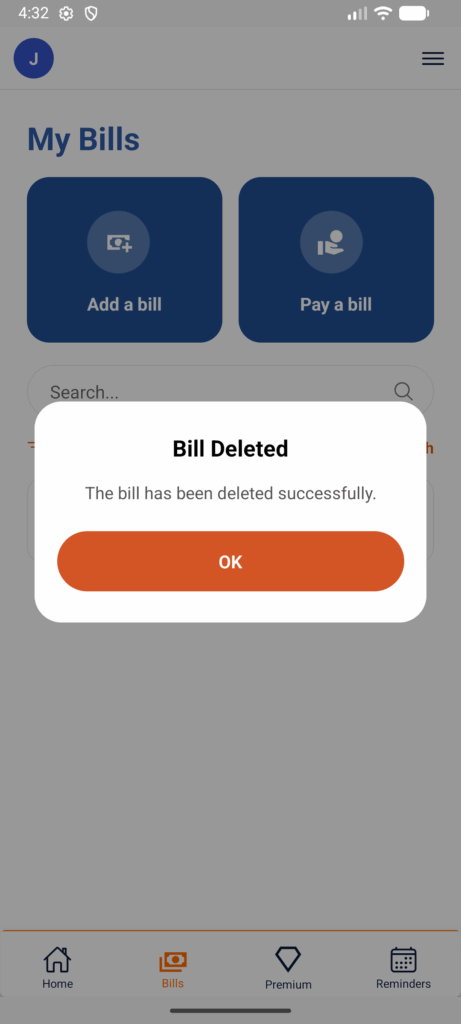
-Pay a Bill
To pay a bill, click on Pay a Bill button from the My Bills Page or go to premium page to pay bills section and pay your bill.
You must have the link setup for it to work
How to use My Premium Page
For $3.33 USD a month if paid every three months, six months and yearly, or $4.99 per month.
My stats page has three sections. Stats, Upcoming, Past Due and Pay Bills
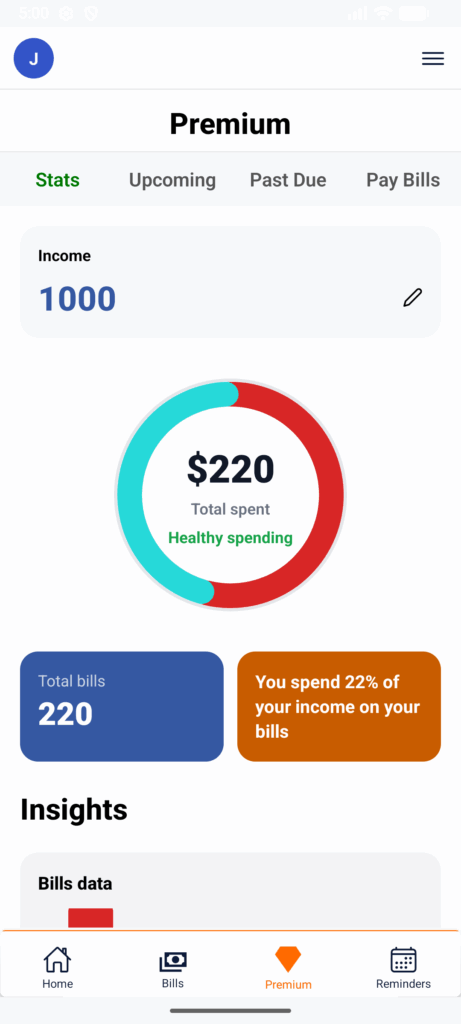
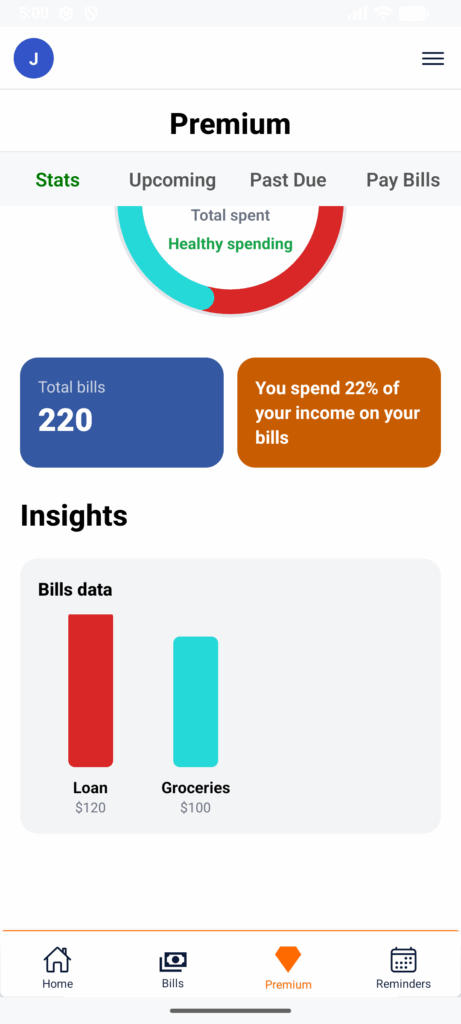
– Stats lets you add your income, view the total amount you spend on bills, see what percentage of your income goes toward expenses, and review a breakdown of your spending by category.
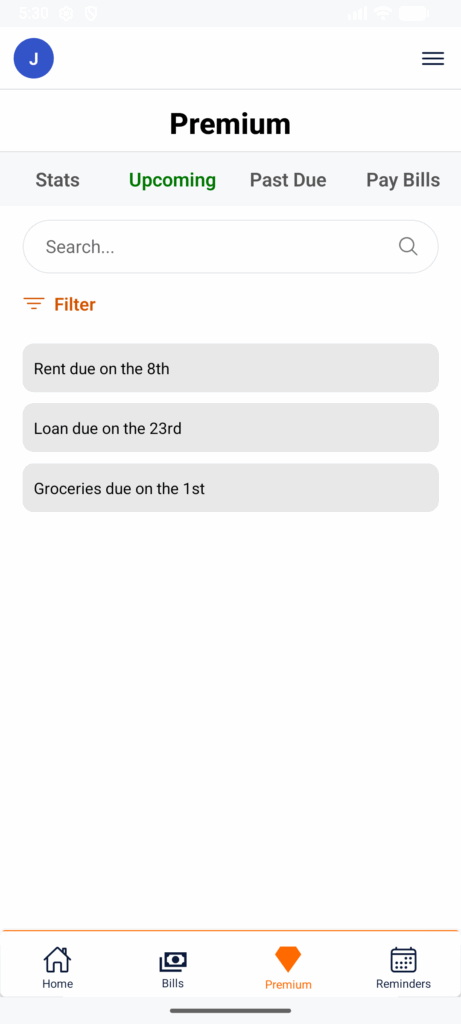
-For the upcoming page , you can see your upcoming bills for up to a month. You can filter them by week as well. One week ahead, two weeks ahead, three weeks ahead and up to a month.
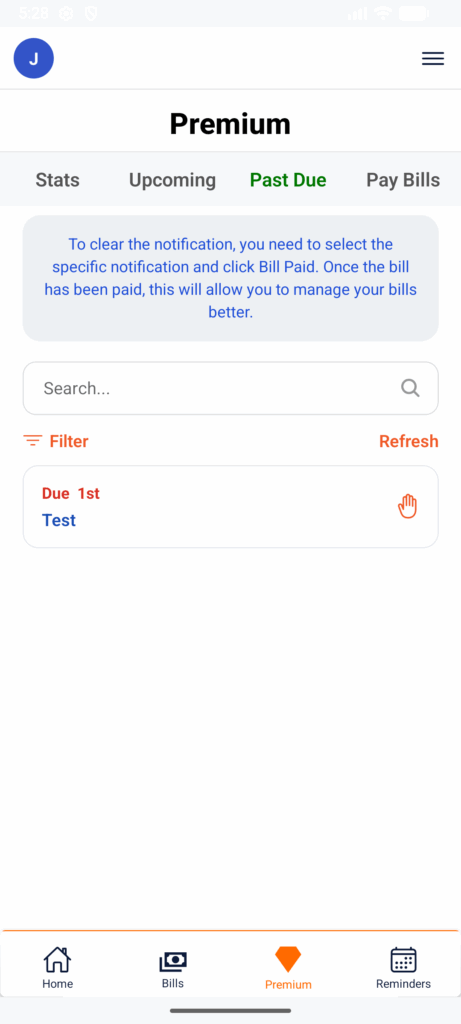
-For the past due page , you can see your past due bills. To remove it, you can click on the past due bill and mentioned that the bill was paid and the app will automatically clear it.
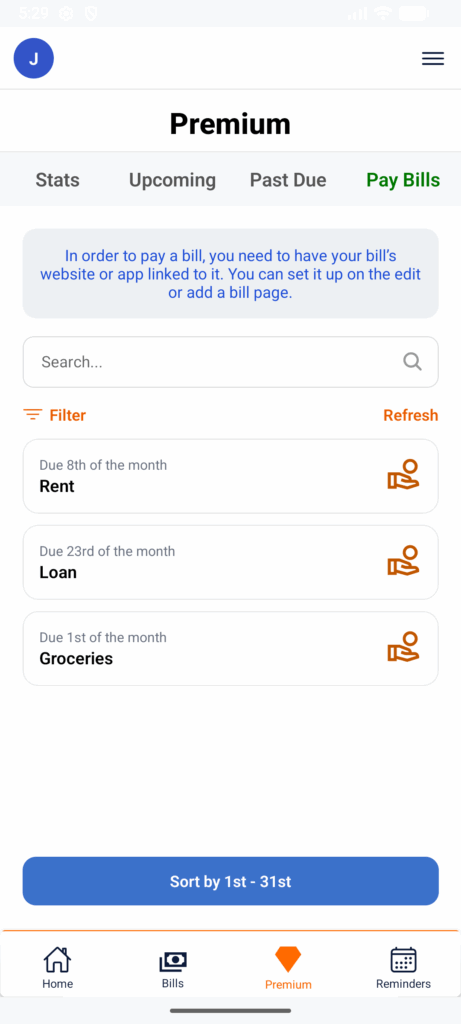
-For the pay bills page, as long as the website is linked to the bill, you can pay your bill simply by clicking on the bill
Reminders
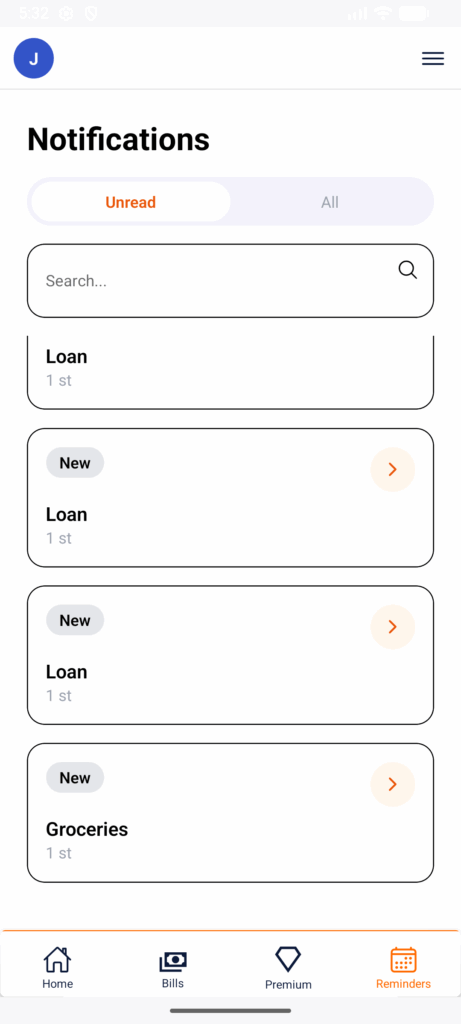
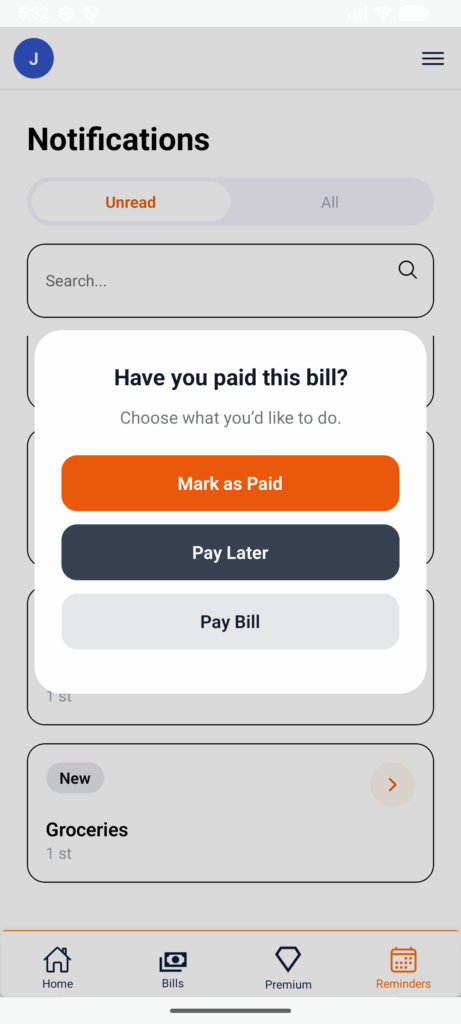
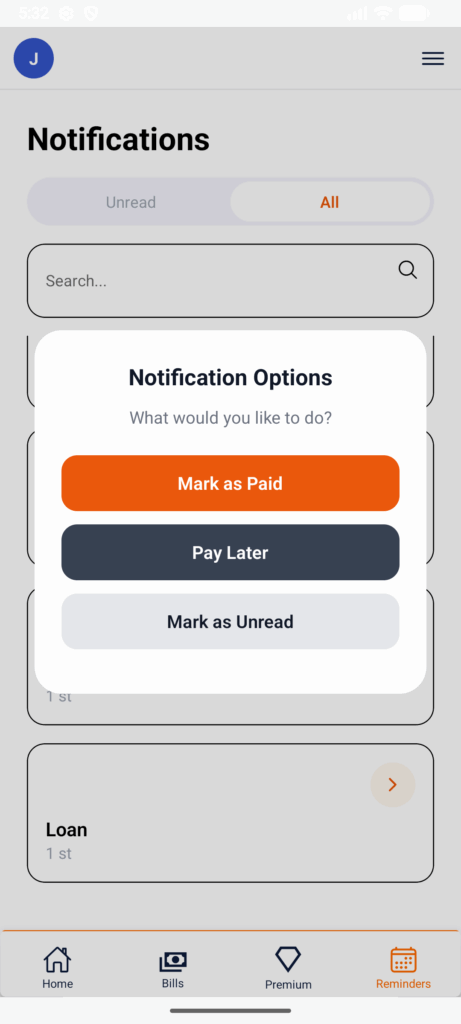
The reminders page allows you to get reminders when bills are due. It appears on the days a bill is due and stays on the page unless you either click on bill paid or pay later. If you click on pay later, it will take it to the overdue bills until you pay for it.
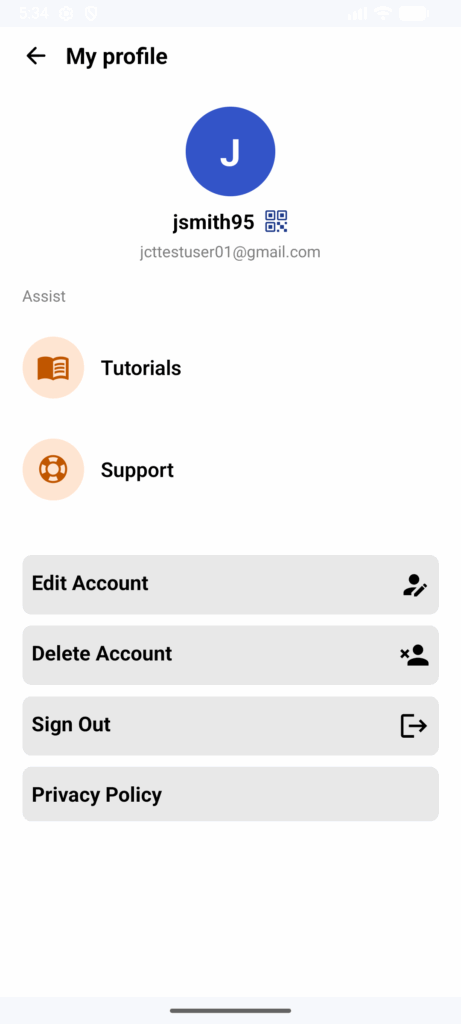
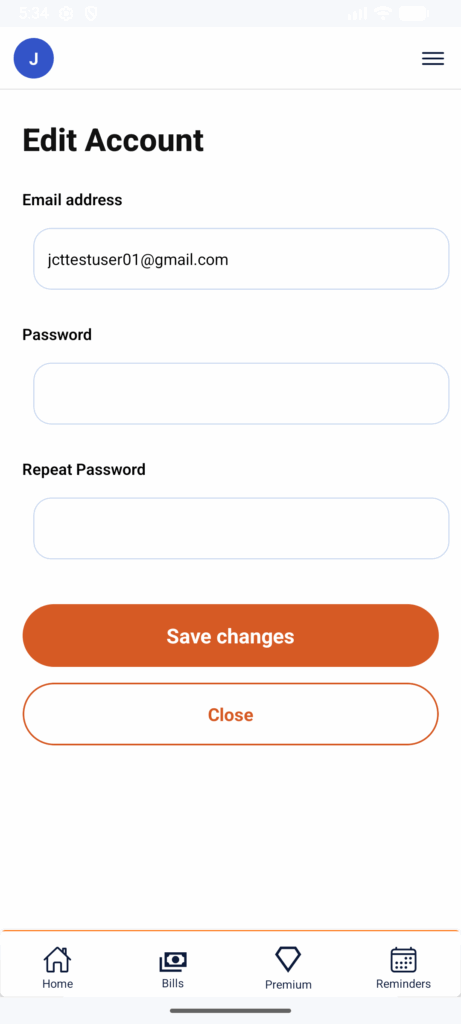
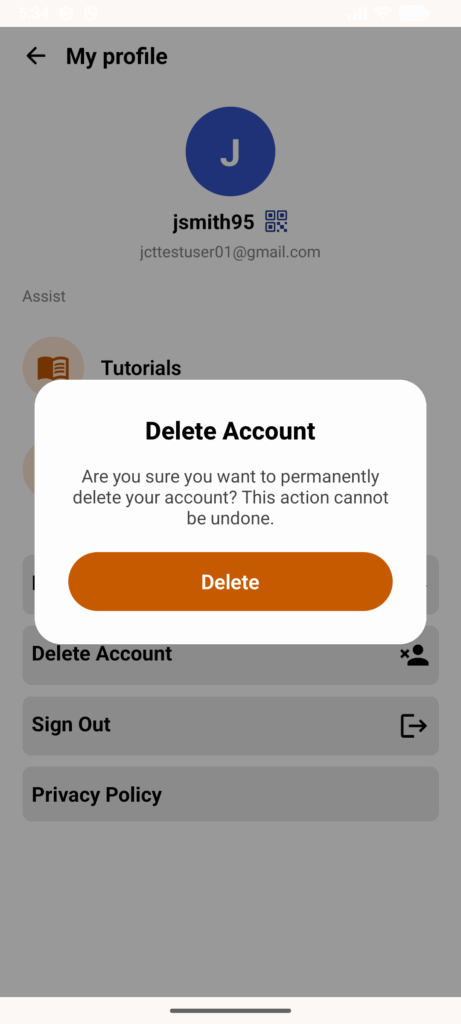
My Account
You can edit your account page by changing the password as well as deleting your account. Simply follow the prompts to complete them. You can also sign out , edit your account info.